


Introduction
The One series is the fresh new lineup of smartphones that helped HTC take the spotlight early in 2012. While the One S and One X are flexing muscle at each other as a way to stay sharp for the invasion of the other predators with multi-core processors and high resolution screens, the One V aims at a less violent market segment - and it's priced accordingly. While we wouldn't go as far as to call it a budget phone, it's a familiar package - and a lot friendlier - less powerful, but hopefully not underpowered. Not nearly as impressively equipped as its bigger siblings, the One V looks no less stylish - a good start is half the job done in the smartphone midrange.
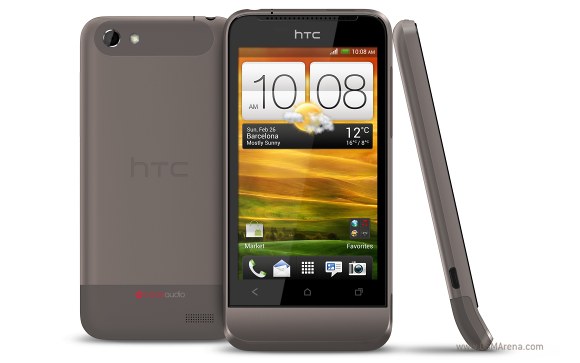
If you know your HTC phones, the resemblance between the One V and the HTC Legend (and, in turn, the Hero) will not go unnoticed. The trademark "chin" makes a strong comeback. Then, as now, HTC are targeting an audience that seek a phone, which makes a statement more than anything else, and with a slim 9.2mm profile and streamlined design, the One V does just that.
But does the HTC pack enough within its slick package for those of us looking for more than just a pretty face? We'll answer that question in detail in the pages to come. For starters, here are the pros and cons of the One V at-a-glance.
Key features
- Quad-band GSM and tri-band 3G support
- 3.7" 16M color capacitive touchscreen with WVGA resolution (480 x 800 pixels)
- Android OS v4.0.3 Ice Cream Sandwich HTC Sense 4.0
- 1 GHz processor, Adreno 205 GPU, Qualcomm Snapdragon MSM8255 chipset
- microSD card slot
- 5 MP autofocus camera with single LED flash; face detection, geotagging, HDR mode, image auto-upload
- 720p video recording @ 30fps, slo-mo videos (2x at WVGA), simultaneous HD video and still image capture
- Wi-Fi b/g/n and DLNA
- GPS with A-GPS
- Stereo FM radio with RDS
- Accelerometer, proximity and ambient light sensor
- Standard 3.5 mm audio jack
- microUSB port (charging) and stereo Bluetooth v4.0
- Smart dial, voice dialing
- Polaris Office document editor
- DivX/XviD video support
- HTC Locations app
- HTC Car integration
- HTC Portable Hotspot
- Fast boot time
Main disadvantages
- Only 1GB of the 4GB internal storage is available to the user
- No front-facing camera
- Some competing smartphones have dual-core CPUs
- Non-user-replaceable battery
- No dedicated camera key
The quick boot is no news in an HTC smartphone but that feature wasn't exactly blazing fast in the One X and the One S. The One V is more like it at about 8 seconds to the lock screen from a cold boot, and less than 12 for everything to fully load. There're also plenty of slick additions to the interface. ICS and the latest HTC Sense 4.0 is a powerful combo, which creates a pretty impressive user experience. Keeping in mind, of course, that you'll need to pop in a microSD card at the first available opportunity, as you have less than 1GB of internal storage to work with once the operating system and preloaded HTC apps have had their say.

HTC One V live pictures
We'll now take a look at the HTC One V retail package, before we proceed with our traditional hardware checkup.
Average retail package
The HTC One series phones all come in a distinctive rounded huge pill-like box, which is perhaps an attempt by HTC to change up their packaging to something a bit more eye-catching. If you're not a fan of the box, then you'll be even less of a fan of the material it's made of. It lies somewhere in that gray area between paper and...thicker paper. Not quite cardboard, and definitely not a recipient of that glossy sheen you see on fancy retail boxes, it tends to undergo cosmetic damage fairly easily. So, if you're planning on holding onto the box for longer, be sure to tuck it away in a safe place as soon as possible.
But enough about the box - on to what's inside. What we have here is your traditional combo; earbuds, USB cable, a small novella worth of documentation, an A/C adaptor and a CD we assume contains more documentation.

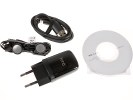
The HTC One V's flimsy box and standard accessories
HTC One V 360-degree spin
The HTC One V measures 120.3 x 59.7 x 9.2 mm and weighs 115 g. It's slightly larger, but thinner than its predecessor - the HTC Legend.
Design and construction
While the distinct chin under the display is not for everyone, it undeniably makes the phone stand out. The device is your typical unibody that feels extra strong with that rough metal texture .The inside of the chin is textured slightly differently, for a brushed metallic look.
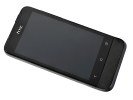

The HTC One V
The One V comes with a standard 3.7" capacitive LCD screen displaying 16 million colors. And while it doesn't have the Super AMOLED or Super IPS LCD2 screens found in its One series siblings, it manages crisp colors and decent contrast.
It also has above average viewing angles and good sunlit legibility.
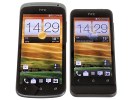
The HTC One V's display • Next to the HTC One S
And here are the results of our traditional display brightness and contrast test.
| Display test | 50% brightness | 100% brightness | ||||
| Black, cd/m2 | White, cd/m2 | Black, cd/m2 | White, cd/m2 | |||
| HTC One V | 0.22 | 229 | 1049 | 0.40 | 425 | 1053 |
| HTC One X | 0.15 | 200 | 1375 | 0.39 | 550 | 1410 |
| Samsung Galaxy Nexus | 0 | 112 | ∞ | 0 | 247 | ∞ |
| Motorola RAZR XT910 | 0 | 215 | ∞ | 0 | 361 | ∞ |
| Samsung I9100 Galaxy S II | 0 | 231 | ∞ | 0 | 362 | ∞ |
| HTC One S | 0 | 177 | ∞ | 0 | 386 | ∞ |
| Samsung Galaxy Note | 0 | 287 | ∞ | 0 | 429 | ∞ |
| Sony Xperia S | - | - | - | 0.48 | 495 | 1038 |
Above the display is the earpiece alongside some hidden proximity and ambient light sensors.
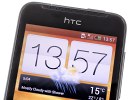
The earpiece above the display
The phone is designed around the now standard for HTC three button configuration. These buttons are haptic-enabled capacitive keys, and are located on the same elevated platform as the display. From left to right they are Back, Home, and Task Manager.
Capacitive keys below the display
The sides of the device are sparse, with just the volume rocker located on the right side, and microUSB port on the left.
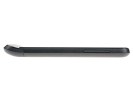
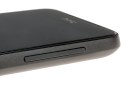
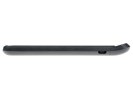
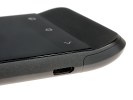
The volume rocker on the right and microUSB port on the left
Along the top of the device are the 3.5mm audio jack and, a thin status LED, and the Power/Lock key.
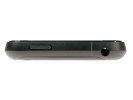

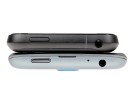
A standard 3.5mm audio jack, LED indicator light and a power/screen lock key • With the HTC One S
On the bottom you'll find just the microphone pinhole.
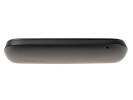
The microphone pinhole is located on the curved bottom
The back panel contains the 5MP camera lens and the LED flash along the top.
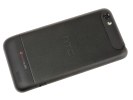
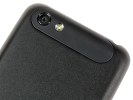
The One V's back with camera along the top
The lower half of the rear slides open to grant access to the memory card slot and SIM compartment. It's made of a slightly different type of plastic than the rest of the body, and feels a bit more rubbery to the touch. It also has a small grille for the speaker located underneath.
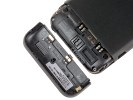
Removing the One V cover
The microSD slot is hot-swappable while popping in a SIM card will prompt a restart.
Inside the HTC One V shell sits a 1500 mAh battery. Here's how it did in our dedicated battery test.
The One V's lack of a dedicated camera shutter key is a slight disadvantage, and it doesn't have the Legend's optical trackpad to do the job either. A front-facing camera may also be missed, particularly if video-calling is your thing. That being said, the feature-set is quite robust and the build and finish can rival many premium droids. It has a slick although recycled unibody design from HTC, which nonetheless has loads of character. Ergonomically, it feels great and fits the hand very well, while the weight is just right - not too heavy and not too light.

HTC One V in hand
The cool design is accompanied by an even cooler ICS interface. Join us on the next page as we examine the software powered by the latest generation of Android.
ICS all Sensed-out
The HTC One V comes with Android 4.0.3 and Sense 4.0 - the newest software available from both Google and HTC. We've seen Android 4.0 Ice Cream Sandwich several times already, but not quite like this.
The One V, strangely, lacks some of the Sesne UI features of its peers - the One X and One S. For one there's no leap view, which is really odd. Secondly the multitasking panel isn't the eye candy-filled one we saw in the S and X but a regular ICS one, where you swipe tabs either left or right to disable them. Third the lockscreen cannot be customized - you only get the option to enable or disable app shortcuts on it and there are no extra lockscreens to choose from or download all together.
Here's a video demo with the highlights of the latest Sense on the One V:
HTC are famous for their deep customizations of the interface of the host OS and the latest version of Sense is no exception, though the Taiwanese have taken user feedback to heart and worked hard to provide a much more unobtrusive experience.
By default the lockscreen has four shortcuts and a ring at the bottom. You drag the ring towards the center of the screen to unlock the phone.
Or, you can drag any of the shortcuts into the ring to unlock the phone and launch the corresponding app. You can assign any four apps to the lockscreen.



The lockscreen lacks features
If you're using the music player, the playback controls show up on the lockscreen (as usual), but weirdly you cannot drag the music player widget into the ring to unlock and go directly to it.
HTC have done a lot to streamline the lockscreen and the same goes for the homescreen. Gone is the scrolling indicator arc, gone is the three button dock that wasn't very useful.
You get an auto-hiding indicator of which screen you're on and a brand new dock with five shortcuts - the middle one is locked to the app drawer, while the other four can be customized as you please (you can even put a folder there, if four shortcuts isn't enough).
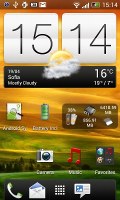
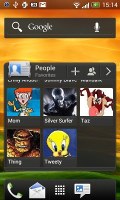
Some of the homescreen sections
As we mentioned earlier leap view is missing. We don't get it - there isn't an issue with the screen estate because the Desire S (among others) has it and its LCD is of the same size.
You can have as many as five homescreens - and with all the excellent preloaded widgets, you might want to keep all of them.
One of the biggest complaints was that the Personalize button was just taking up space in the dock at the bottom of the screen. And it was - it has since been moved to the app drawer, but it still offers plenty of customization options.
The proprietary Scenes is one of them - essentially five custom homescreen setups (Work, Travel, Social, Play and default). Each scene changes the wallpaper and the set of widgets. For instance, the Work scene has a Stocks widget, while the Social offers a Twitter widget. Those can be customized, of course, and you can download new ones.
The HTC Sense has another customization option called Skins. Every skin changes the look and feel of most of the onscreen buttons, application screens, option menus, and other items. They also come with unique wallpaper each and use different colors for various UI elements.
The main menu has the typical grid layout, which is composed of vertical pages with shortcuts sorted alphabetically. You can set different sorting options - alphabetical, most recent or oldest - but you can't rearrange them manually. There are Search and Play Store shortcuts along with a menu for some options.
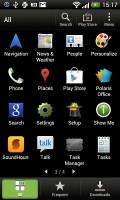
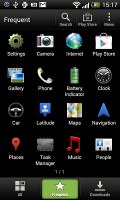
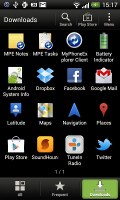
The new app drawer
The main menu is separated into tabs, like many other elements of the Sense UI (such as the phonebook). There are three tabs available at the bottom - All apps, Frequent and Downloads. You can rearrange them or remove Frequent and Downloads if you don't need them.
The Personalize app also has Sound customizations - you can pick a Sound set or individual ringtone, notification and alarm sounds.
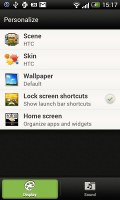
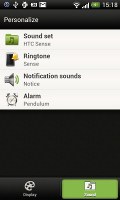
The Personalize menu does Sound too
Adding widgets to the homescreen is done in similar fashion to Honeycomb and is one of the less successful changes.
You press and hold on the homescreen and everything zooms out so that the homescreen panes are visible as thumbnails on the top row of the screen. You tap a homescreen to select it and then select a widget to add to it (or you can just drag the widget).
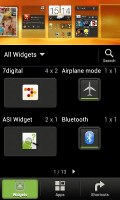
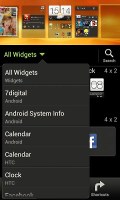
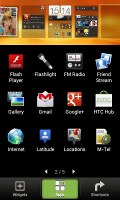
Adding a widget to the homescreen
Our beef is with how widgets are selected - they are shown four at a time and there's a lot of scrolling involved. Widgets are available in multiple versions - usually differing in size, but also functionality - and they're all dumped into the list, so you're scrolling through a lot of duplicates.
There's a search option to speed things along or you can choose a widget from the dropdown menu and then select which size you like, but that still feels like an extra step.
The old setup of picking a widget and then picking the size (if any) seemed simpler.
Editing the homescreen is different from vanilla Android. You can tap and hold on a widget and you can drag across homescreen panes. While you're dragging a widget (or shortcut or whatever), two "buttons" appear at the top of the screen - Edit and Remove. You drop the widget on either button to perform the corresponding action.
Edit can be used to modify the settings of a widget - e.g. choose a different folder for the Photo Frame album or even choose a different version of the Clock widget. This saves you the trouble of first deleting a widget and then putting it on the screen again to choose a different version, setting and so on.
The second "button" is Remove, which deletes the widget as expected.
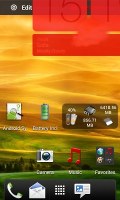
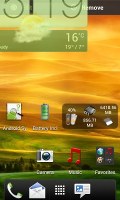
Dragging a widget gives you options
The notification area no longer has the list of recent apps - it's all available to notifications only. No more tabs and toggles either - you get a Settings shortcut here if you need to power something on or off. There's also a Clear button to dismiss all notification or you can swipe them off one by one.
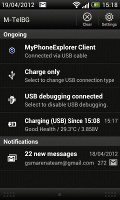
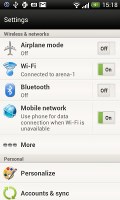
The notification area has been significantly de-cluttered
The task switcher on the One V is vanilla Android - not the revamped one premiered on the One X and One S. To close apps you either swipe them to the left or to the right.
You get the old task manager too. It's simple to use - each running app is listed with an indication of how much RAM it's using (no CPU usage reading though). You can terminate apps one by one and there's a Stop All button, too.
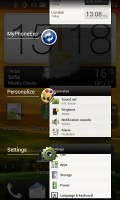
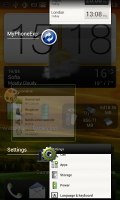
HTC's task switcher and task manager
Synthetic benchmarks
The HTC One V is nothing special in terms of hardware - the familiar single-core 1 GHz Scorpion processor, which can be traced back to devices such as the Desire S and the Desire HD, the Adreno 205 GPU and 512 MB worth of RAM are hardly anything to write home about.
Linpack shows the One V trumped by its superior competition - normal given the fact that the One V CPU not only has fewer cores but also uses an older architecture.
Linpack
Higher is better
- HTC One X126.1
- HTC One S210
- Samsung Galaxy S II77.6
- Samsung Galaxy Nexus77.1
- HTC One V34.4
- Sony Xperia S86.4
- Samsung Galaxy Note 10.190
The JavaScript benchmark SunSpider brought better news for the One V as a good performer, as its new JS engine, which comes with ICS helped it outdo the Sensation XE.
SunSpider
Lower is better
- HTC One X1757
- HTC One S1708
- Samsung Galaxy S II1849
- Samsung Galaxy Nexus1863
- HTC One V3299
- HTC Sensation XE4404
- Sony Xperia S2587
- Samsung Galaxy Note 10.11891
- Apple iPhone 4S2217
BrowserMark tests HTML5 performance and as expected the One V can't keep pace with its multi-core rivals here.
BrowserMark
Higher is better
- HTC One X96803
- HTC One S98435
- Samsung Galaxy S II111853
- Samsung Galaxy Nexus103591
- HTC One V42342
- Sony Xperia S74990
- Samsung Galaxy Note 10.1113256
- Apple iPhone 4S88725
Quadrant tests overall performance, but that's does little to help the One V - its GPU is hardly doing much better than its CPU.
Quadrant (ICS friendly version)
Higher is better
- Samsung Galaxy Nexus 2116
- Samsung Galaxy S II3976
- HTC One V1994
- HTC One X4574
The One V isn't quite the benchmark champion, but then again it was never meant to be. Casual users will find its chipset perfectly adequate as it suffices for smooth UI navigation, reasonable browsing performance and moderately heavy gaming (Fieldrunners and Angry Birds ran perfectly well).
Fully functional phonebook
The One V has HTC's all-knowing phonebook with deep social networking integration. It manages to keep things neatly in order, even though it's juggling everything from SMS to Facebook photo albums.
The entire People app (the phonebook) is tabbed - you have the dialer, all contacts, groups (including favorite contacts there), as well as a call log. Once again, you can reorder tabs and remove the ones that you don't need (Groups or Call history).
From a drop-down menu at the top, you can filter contacts based on where they came from - the phone's address book, Facebook, Twitter or your HTC Sense account. If an account has multiple subgroups (e.g. Gmail's groups), they can be toggled individually as well.
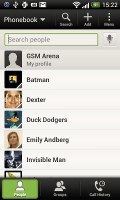

Phonebook • groups • call log
Selecting a contact displays the basic details: name and photo, numbers, emails and such. That's just the first tab - the other tabs hold further details and means of communication, including email and a call log.

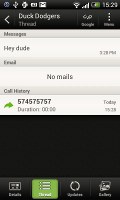
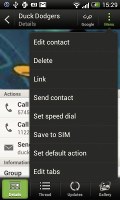
Viewing a contact
The second tab holds the texts, emails and call history between you and the given contact. The next one displays social networking contact updates, and the fourth one called "Gallery" pulls the albums that contacts have created on Flickr and Facebook.
When editing a contact, you start off with just one of the essential fields but you can easily add more.

Editing a contact
The transfer app is here to help you switch from your old phone. It supports many phones from major manufacturers and moves the data over Bluetooth. It's an old, but useful trick.
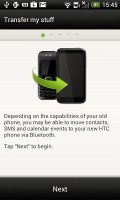
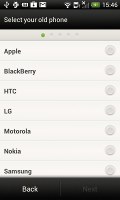
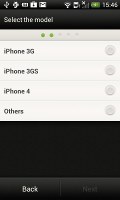
The Transfer app will easily copy your contacts from your old phone
Telephony
The HTC One V hung on to signal trouble-free. In-call sound was nicely and we had little trouble with our communications.
The dialer on the One V displays your recent calls and the list of favorite contacts underneath. Once you start typing on the keyboard, contacts will be filtered by name or by phone number.
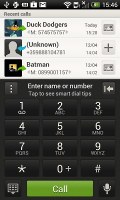
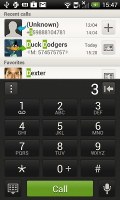
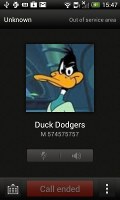
The dialer has smart dialing • calling Duck Dodgers
The One V packs the standard set of accelerometer-based tricks - turning the phone in the middle of a call will enable the loudspeaker, Quiet ring on pickup will reduce the loudness of the ringtone when you move the phone and Pocket mode boosts ringtone volume if the phone is in your pocket or purse.
Here's how the HTC One V fares in our traditional loudspeaker performance test. It scored a Below Average mark meaning you run the risk of missing calls or texts in louder environments. Placing the phone on an even surface helps boost the loudspeaker sound.
| Speakerphone test | Voice, dB | Ringing | Overal score | |
| Nokia Lumia 800 | 60.9 | 59.0 | 61.7 | Below Average |
| 66.9 | 65.3 | 67.7 | ||
| Apple iPhone 4S | 65.8 | 64.5 | 74.6 | |
| Samsung Galaxy Note N7000 | 64.9 | 64.6 | 72.2 | |
| Sony Xperia S | 72.7 | 61.8 | 69.6 | |
| HTC One S | 65.1 | 64.6 | 76.7 | |
| HTC Sensation XE | 65.8 | 65.4 | 76.9 | |
| Motorola RAZR XT910 | 74.7 | 66.6 | 82.1 | Very Good |
| 76.6 | 75.7 | 84.6 | Excellent |
Very good messaging
The HTC One V is capable of handling all sorts of messages - SMS, MMS, email. Social networking is covered by several apps and widgets, and there's Gtalk, which can connect you to Google's chat network and compatible networks too (like Ovi Chat).
SMS and MMS messages are displayed in threads - you see a list of all conversations, each one is listed with the contact's photo, name and the subject of the last message, as well as a part of the actual message (you can choose 1, 2 or 3 preview lines). Tapping a conversation brings up the entire message history with that contact.
To add recipients, just start typing a name or number and choose from the contacts offered - the phone will find the contact you want even if you misspell it (e.g. "drx" matches Dexter).


The messaging app
The compose box covers about a fifth of the screen in portrait mode or about a third in landscape. A tap-and-hold on the text box gives you access to functions such as cut, copy and paste. You are free to paste the copied text across applications like email, notes, chats, etc. and vice versa.
Text input on the One V boils down to an on-screen custom-made HTC virtual QWERTY keyboard. The 3.7" screen isn't the best size for comfortable and fast typing, so you might need to go landscape pretty often with this one.
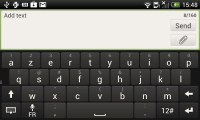
The on-screen QWERTY keyboard in landscape mode
Converting SMS into MMS is as simple as adding some multimedia content to the message. You can just add a photo or an audio file to go with the text, or you can get creative with several slides and photos.
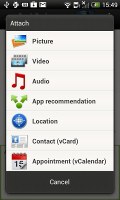

Attaching a multimedia file turns the SMS to MMS
Two email apps
The HTC One V comes with two email apps - the traditional Gmail app and the generic HTC Mail app, which lets you merge all your email accounts into a single inbox.




Batch operations lets you manage multiple conversations
The Gmail app has the trademark conversation style view and can manage multiple Gmail accounts. Batch operations are supported too, in case you need to handle email messages in bulk.
The HTC Mail app features conversation view in an attempt to mimic the original Gmail client threaded view, which is otherwise missing in the generic email client on Android smartphones. Emails in a thread are grouped and a number of emails and a down arrow appear - tap the arrow to show/hide the messages in that group.
You can add multiple accounts (from multiple services) and view them individually or in a combined inbox. Each account is color coded, so you can quickly associate each message with its relevant account.




The standard HTC email app
The Mail app has tabs, but they are hidden by default. You can choose Edit tabs from the menu and pull out the ones you want. You can choose from Favorites, Unread, Marked, Invites and Attached.
Email sorting is enabled (in either ascending or descending order) by date, subject, sender, priority and size. The currently applied filter is displayed in the top right corner of the display.
There's hardly anything we can think of that the HTC One V lacks in terms of email capabilities. The settings for popular email services are automatically configured. POP/IMAP accounts and Active Sync accounts are supported.
Gallery for both offline and online images
The HTC gallery is a custom job, but stacks photos just like the vanilla Android gallery (it used to display a list of thumbnails). The app automatically locates images and videos, no matter where they are stored. You can choose to show/hide camera shots, All photos or All videos.
A tap on the Albums dropdown lets you view local albums, albums on a network (DLNA) device or online albums. On the cloud side, you get Facebook, Flickr, Dropbox, Picasa or SkyDrive.
The Albums app has a new look
Once you pick one of the "stacks" (each standing for a folder), you're presented with a grid of the photos inside. Some photos have an icon indicating it's not a single photo but a burst shot instead. You can later go back and pick the keep or the one to be used as a thumbnail.
Browsing the image gallery
You can also mass delete images, but you can't copy/paste images across folders - you'd need a proper file manager for that. There are some basic editing tools - crop, rotate and effects (auto enhance, sepia, vintage, etc.).
Mass deleting photos • Basic image editing tools
The HTC One V supports multi-touch and you can take full advantage of it while browsing your images. You can zoom to 100% with a simple double tap on the screen. The implementation here is extra smooth too.
Zooming in on a photo
Quite decent video player
There's no dedicated video player app onboard the HTC One V, video files can be accessed in the All videos subfolder in the Gallery.
The Videos app is part of the Gallery
The video playing interface on the HTC One V offers a view mode toggle (full screen or best fit) and you can scrub through videos. There's a shortcut that lets you adjust screen brightness and another one to take screenshots of videos.
Video codec support was decent, but the One V had issues with a few of the DivX files we threw at it. On the other hand, all supported videos ran smooth up to 720p resolution, which is good for a single-core unit.
Speaking of audio, you can choose between Beats Audio, HTC enhancer or No effects (as long as you are using a pair of headphones).
Beats Audio enhancement
Subtitle support is available, though you can't manually pick a subtitle file, so you have to name it the same as the video file.
Playing video • Activating Beats Audio
Due to the lack of DLNA connectivity, wireless streaming is a no-go on the One V, as opposed to the One X and S.
Music player with Beats
The Music app starts off by offering you several shortcuts - music library on the phone, SoundHound track recognition, TuneIn Radio or 7digital. Below is a line that shows a recently played song and further down is the currently playing song.
Once you get into the music library available on the phone you get a dropdown menu to browse it by artist, album, playlist or genre. There's a search tool too.
The music library
The now playing interface is a thumb visualization of the current playlist - you can swipe sideways to skip songs back or forward. You can opt to view the full playlist if you need to skip more than a few tracks.
The new player interface is nice
You can tap the ellipsis to automatically fetch album art for a track or look it up on Google or YouTube.
The One V offers the Beats Audio sound enhancement to boost the sonic experience - you can use it with any headset you want. You can choose between multiple presets - Beats audio, classical, bass boost and so on or turn the effects completely off (audio purists, rejoice!).
Even though the phone doesn't come with a Beats headset it supports several of them - iBeats/urBeats, Beats Solo, Beats Pro or Beats Studio. You should pick the correct one as it adjusts the equalizer according to the characteristics of the headset. There's an "Other" option too, but if you're not using Beats you can just pick the one that sounds best to you.
Choosing an audio preset
The lockscreen has a card that shows the album art and name of the song and artist along with playback controls. Strangely unlike on the One X and S you can't drag the card into the lockscreen interactive ring.
Now Playing on the lockscreen and Notification area
SoundHound is the track recognition of choice for HTC and they've even integrated it into the music player UI. It easily ID's a song from just a short sample. Or you can say the name of the artist and song and SoundHound will find it for you, including lyrics. The free app however only offers a limited number of uses (99).
The SoundHound app
FM radio is easy to operate
The HTC One V is also equipped with an FM radio, which has a pretty simple interface. It automatically scans the area for the available stations and allows you to mark some of them as favorite. It also supports RDS and allows loudspeaker playback.
The FM radio UI
You can play the sound through the headphones or the loudspeaker. You can also choose Mono sound if the reception is poor. There's no Beats enhancement here, tough, or a playback control card on the lockscreen.
If you have a data connection, you can use 7digital or TuneIn Radio instead of relying on your local FM radio stations.
Pretty good audio quality
The HTC One V managed to put up a solid performance in our audio quality test. Its output was impressively clean when connected to an active external amplifier, as shown by the great scores all over the place. Volume levels were only average, though.
Some stereo crosstalk did appear when we plugged in a pair of headphones, but that’s basically all that went wrong, so it’s certainly a more than great overall performance.
Here go the results so you can see how the One V did for yourselves.
Shared camera interface
The HTC One V packs a 5MP camera that does stills of up to 2592 x 1944 pixels and records 720p video @ 30fps. There's an LED flash / video light too.
The camera interface is the same for both the still camera and the video camera - no they don't "look alike", the camera just has the UI shared between both functions.
The right-hand side features the Effects button, shutter key, camcorder record key and a shortcut to the gallery that shows the last photo taken. On the left is the flash setting toggle, general settings and shot mode (we'll get back to that in a moment).
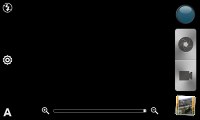

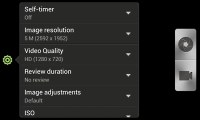
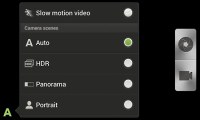
HTC One camera interface
To snap a photo, you tap the shutter key. To record video you tap the button below - and you can still tap the shutter key to snap a full-res photo, even while recording video. Another cool option is the burst mode, which we mentioned in the gallery - you press and hold on the shutter key and it will snap multiple photos and let you pick which one to keep (you can keep all of them of course).
All this is pretty cool, but we had one problem with this combined interface - if you want full 5MP resolution still shots, you have to disable the Widescreen option. But then it becomes hard to frame a 16:9 video in the 4:3 view finder. That's made even worse when shooting 720p video. The field of view in that mode is narrower than what the viewfinder shows and framing involves a lot of guesswork.
The HTC One V has touch focus and face detection; geotagging and smile shutter are also enabled.
Continuous autofocus is available too which is good to have on a phone that lacks a hardware shutter key (the virtual shutter key cannot trigger autofocus either, it does burst mode). On the downside, the continuous autofocus may be way off in some shots - the only way to be certain you have the right focus is to tap and hold the shutter key.
The effects button brings out a panel to the left with the usual set of color effects (sepia, solarize and so on). There are other image effects too. For example, Depth of field is another such effect - it adds a radius slider around the control point and will blur everything in the photo that falls outside the circle.
The shot mode button offers some more cool stuff - HDR photos, Panorama (with a gyro horizon), portrait, group portrait, landscape, whiteboard, close-up and, finally, low light.
Group portrait is quite cool - we've seen something like it before in the Scalado Rewind. It snaps multiple photos and for each face (and the One V can track many faces), the phone automatically picks the one where that person is smiling and hasn't blinked.
Given its impressively bright f/2.0 lens and the big deal HTC made about the camera in the PR materials, it's hardly a surprise that the One V camera is among the strongest players in the 5 MP league. It resolves plenty of fine detail and while noise suppression is a tad too aggressive, most of it is still present in the final image. Colors are okay, too and we should give the camera a pat on the back for being extra fast.






HTC One V camera samples
The One V offers HDR mode, so we took a few shots with that too. Here's a comparison of a scene with HDR off and on. The results are not bad, but the HDR look is a bit exaggerated .


HTC One V camera HDR effect
We snapped a couple of macro shots too using the Close-up focus setting.


HTC One V macro samples
Photo quality comparison
The HTC One V joins the other 5MP shooters in our Photo Compare Tool. The tool's page will give you enough info on how to use it and what to look for. The One V does quite well here, matching or surpassing most of the other 5MP snappers we have tested.
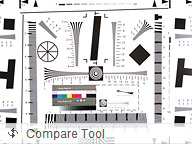
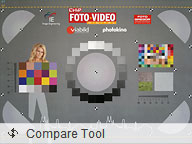

HTC One V in our Photo Compare Tool
720p video recording unimpressive
The One V records 720p video at 30fps and it can snap photos while doing so. You can also use touch focus and even toggle the video light - all during recording!
Videos are stored in MP4 files and use H.264 encoding. 720p videos have a pretty low bitrate (about 5Mbps), and it's quite clear plenty of fine detail is sacrificed to achieve it. Colors are okay, though, and the framerate is smooth.
Here goes an untouched 720p@30fps sample clip.
And here's a video uploaded to YouTube for convenience.
Video quality comparison
We entered the HTC One V in our Video Compare Tool database too and put it head to head with other 720p mobile camcorders.
The One V isn't among the impressive camcroders out there, but it should do for the occasional clip.

HTC One V in the Video Compare Tool
Connectivity suffers no death grip
The HTC One V offers quad-band GSM/GPRS/EDGE and tri-band 3G with HSDPA and HSUPA, but unfortunately HTC didn't see fit to quote exact data speeds.
The local wireless connectivity has Wi-Fi b/g/n and Bluetooth 4.0 but lacks DLNA.
We tested the phone for death-grip and we didn't find any problems - Wi-Fi signal drops if you completely cover the top plastic panel on the back, but the reception still remains quite strong. Cell signal didn't budge.
You have a long list of options for connecting to a PC - Charge only, Disk drive (mass storage), HTC Sync, USB tethering (use the phone as a modem) and Internet pass-through (the phone uses the computer's Internet connection). The Charge only and Disk Drive have big, thumbable icons, which is great since they are most often used.
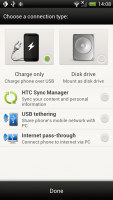
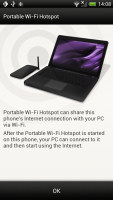
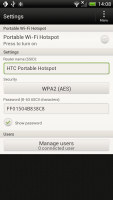

Selecting a USB connection type • Starting the personal Wi-Fi hotspot
Last but not least is the HTC Portable Hotspot. It can support up to 8 devices, you can WEP, WPA or WPA2 encrypt the hotspot and you can enable "allowed users" only to connect or leave it open for all (unsecure, but the quickest setup).
The app can be set to power off automatically after 5 or 10 minutes of inactivity, saving your battery in case you forget to switch it off manually.
Capable ICS browser
The HTC One V comes with the latest Android web browser, which guarantees you a solid experience. Since this is Ice Cream Sandwich, you can also install Chrome for Android, which in our mind is even better in the UI department than the stock app.
Anyway, the browser's interface stays mostly out of sight, which leaves the entire screen to the web page. You get the standard Menu dropdown on the right, but HTC have thrown in some extra buttons at the bottom of the screen (you have to pan to reveal them, which is a little annoying).
They let you save a page in your bookmarks or reading list, view bookmarks, saved pages or tabs. You might want to enable Quick controls - you tap on any point on the edge of the screen and move your finger to select the desired option from a jog-dial menu.
Once you select some text, you can copy it, do a Google search with that text as the query or share the text over a message or social networking.
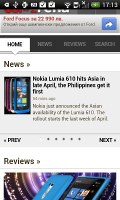


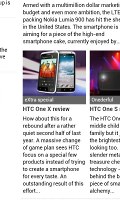
Web browsing is a good experience on the HTC One V
Tabs can be closed with an X button on their top right corner - they can't be swiped off the screen like you do in the app switcher. Incognito tabs are available if you want to bypass History, tracking cookies, form auto-fill stuff and so on.
The Menu options include a toggle to enable/disable Flash and another one to request the desktop version of a site, instead of the mobile one. Another ICS feature has the phone preload search results that it's confident you're going to open, speeding up the whole process.
The HTC One V has full Flash support and it played all YouTube videos without a sweat. Flash games work like a charm too.


Playing Flash games in the browser and watching YouTube videos
Mind you, the browser has support for HTML5 and its video tag but that is a few years (at best) away from becoming the norm.
Organizer has both eye-candy and functionality
The usual set of organizer apps are aboard the HTC One V, with a mobile Office app to boot, that can both view and edit documents.
The Polaris app has support for viewing Word, Excel, and PowerPoint, including the Office 2007 versions and it can create Office 2003 Word, Excel documents and presentations. There is also a PDF viewer on board.
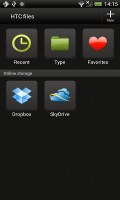
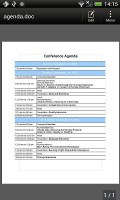
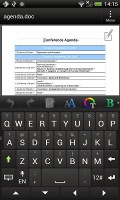
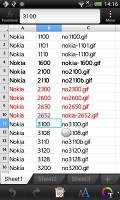


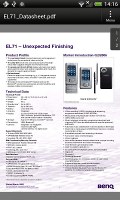
The Quickoffice handles .doc, .xls and .ppt files • Editing a Word document
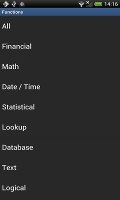
You can format the text style and color, justify the text, do lists (numbered or bullet points) and that's about it for the Word editor. The Excel editor does support function editing, which some mobile editors don't.
The app also integrates with Dropbox and SkyDrive, which makes syncing documents between your computer and your phone a breeze.
The calendar has four different types of view: daily, monthly, agenda and invitation. Adding a new event is quite straightforward and you can also set an alarm to serve as a reminder.

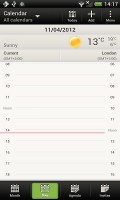
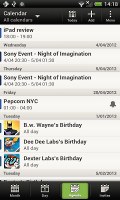
The HTC One V organizer centerpiece - the calendar
The Agenda view shows a list of all the calendar entries from the recent past to the near future. Invitation only lists events with invitation info attached to them. The day view showing the weather forecast at the top of the screen is a nice touch.
The Calendar supports multiple online calendars (including Facebook) and one you sync with your computer. You can easily hide the ones you don't need at a specific moment for easier navigation.
There is also a calculator aboard. It is nicely touch optimized with big, easy to hit buttons. Flipping it to horizontal enables some more advanced functions like logarithms.
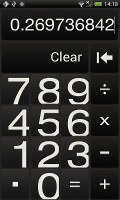
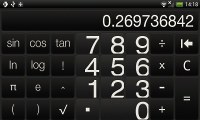
The built-in calculator
The HTC One V features an alarm clock application, which can handle multiple alarms, each with its own start and repeat time. You also get a stopwatch and a timer in the same app.

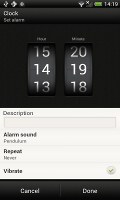
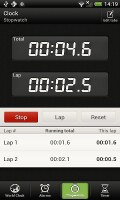
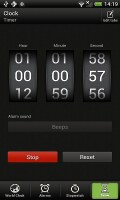
The alarm clock, stopwatch and timer
The World clock (also part of the Clock app) is like a mini Google Earth - it shows a 3D globe and you can rotate and zoom in on it freely. You can add cities that are pinned to the globe (and also visible as a list below it).
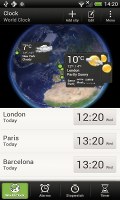
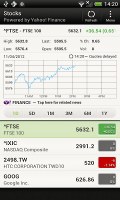

World clock • Stocks app • Voice recorder • Flashlight app
The Stocks application gives you quotes from Yahoo finance. You can use the Stocks lockscreen too. The Voice recorder might be quite useful for making audio notes and the weather app brings Yahoo's weather forecast for your area a click away.
There's an HTC-branded flashlight app too - it uses the LED flash and you can set it to 3 levels of intensity. Nice and all, but the Android Market is full of this kind of apps already.
Play Store and HTC Hub
The Google Play Store features several scrollable tabs - categories, featured, top paid, top free, top grossing, top new paid, top new free and trending. Apps usually have several screenshots (some even offer a demo video) so you can get an idea of what the app looks like before installing it. You can also check out comments and ratings, as well as the number of downloads and so on, to help you decide if the app is worth it.



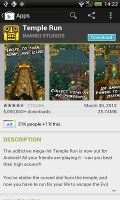
The Google Play Store
There are all kinds of apps in the Android market and the most important ones are covered (file managers, navigation apps, document readers etc.).
Not quite an app store, but the HTC Hub is a good source of wallpapers and sound customizations - ringtones, alarms and notification sounds and entire sound sets (a set is a whole package that brings together the other three categories).
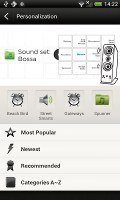
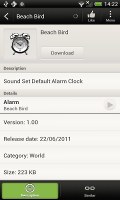
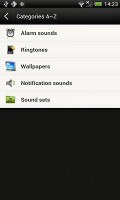
The HTC Hub is your source of customizations
Google Maps and HTC Locations to navigate you
The HTC One V has a built-in GPS receiver, which managed to get a lock in under a minute (with A-GPS switched off). If all you need is a rough idea of where you are (within 150 meters) you can use the Cell-ID and Wi-Fi network lock, which is very fast.
Strangely enough, the HTC One V lacks a magnetometer (digital compass). It's may not be a deal breaker, but it means features like Street View Compass mode won't be available to you.
Google Maps is a standard part of the Android package and we've covered it many times before. It offers voice-guided navigation in certain countries and falls back to a list of instructions elsewhere. You can plan routes, search for nearby POI and go into the always cool Street View.

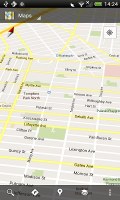
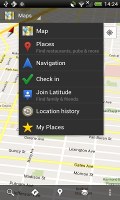

Google Maps is an inherent part of the Android platform
The HTC One V also comes with HTC Locations, an app developed in cooperation with TomTom (software provider) and Route66 (providing the maps).
With HTC Locations you can download country maps for free, or just cache maps as you browse (the size of the cache is adjustable). Google Maps has caching enabled too, but the best part about Locations is that it can even calculate new routes offline, while the Google Maps app only offers rerouting without internet connection.
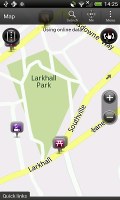
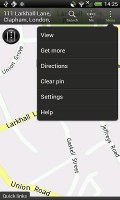


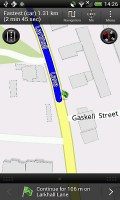
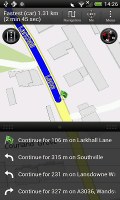
Plotting a route with HTC Locations
It will do voice-guided navigation too, but you'll need a license for that. The One S comes with a trial version worth 30 days of free worldwide navigation. A license for Western Europe will set you back a hefty €40 for a life-time license, the US is $30. Annual and monthly subscriptions are available too. You can also get traffic information and speed camera alerts (€10 for a year for Western Europe, for example). Extra voices are free.
HTC Locations has a regular 2D view and a 3D view, which is convenient because it gives you a better look of what's ahead. It's just as easy to work with as Google Maps and has POI too (including your Footprints) and also 3D buildings.
Pinch zoom works in both 2D and 3D modes and you can turn on compass mode - at first it seems choppy, but that's only to avoid wobbling (digital compasses are not the most accurate things in the world). You could use two fingers to rotate the camera manually too.
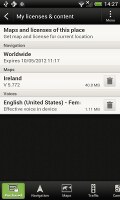
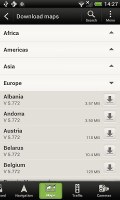
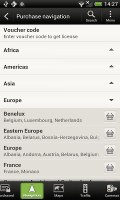

Downloading maps and voices
Final words
With the One series HTC are in their best shape in a while and we don't need to investigate who's to blame. The big bad One X and One S will proudly plead guilty as charged. But it would be unfair to deny the HTC One V its little share of credit.
The One V is built on the solid foundations of the Desire, and its DNA can be traced all the way back to the Legend and the Hero. If you ask us, the One V rings quite a few right bells. However, not having the luxury of an unlimited budget, it had to accept compromise with the level of equipment.
To some the One V may seem like the point in the One series where HTC stopped inventing and started reusing. We personally don't mind a true classic being brought back to life. Here's the catch though: the One V is interested in users who are too young to remember the HTC Hero. Young as in new to the smartphone game.

